Overview
Model business processes with an AI assistant and edit them by hand, on the same diagram.
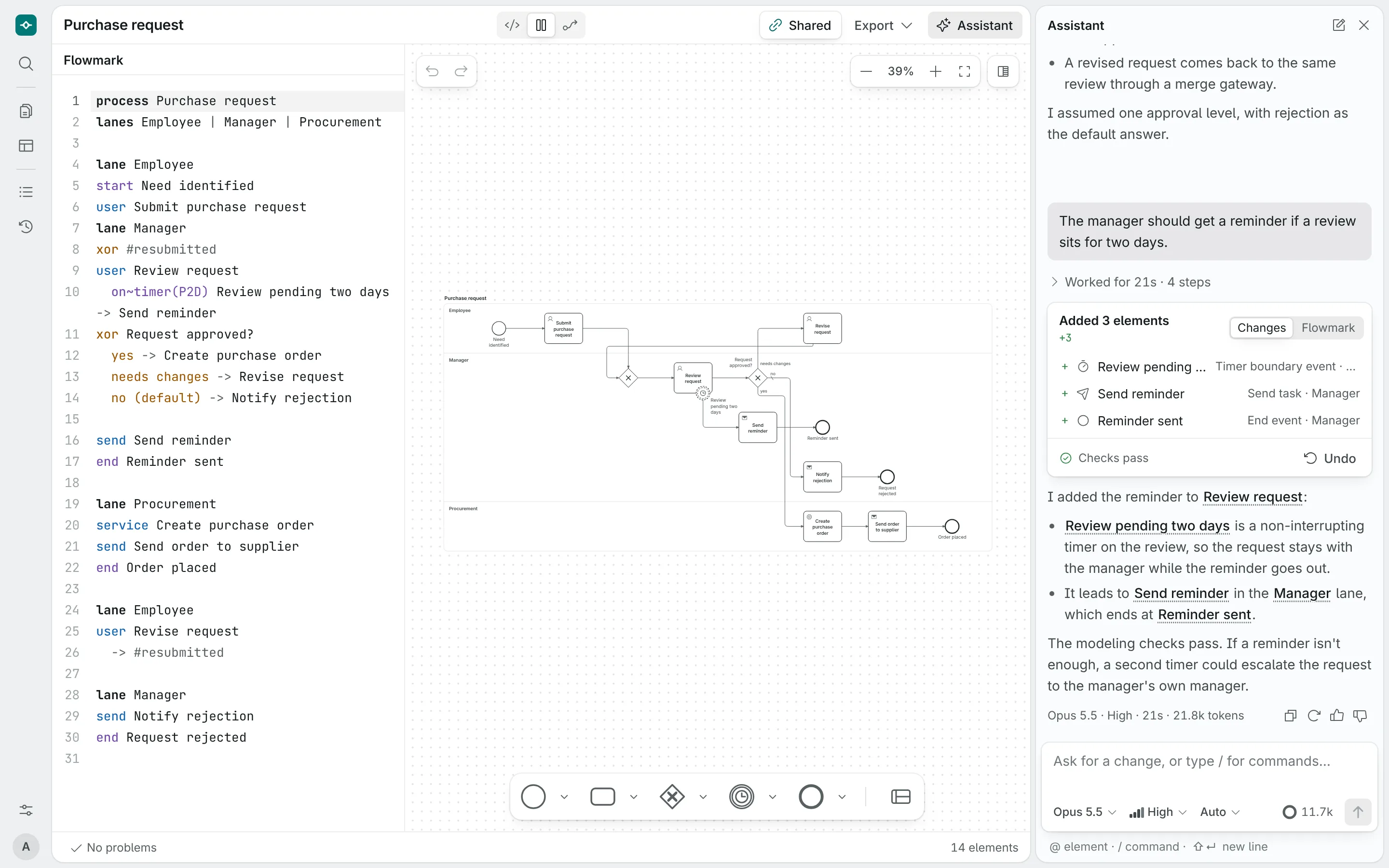
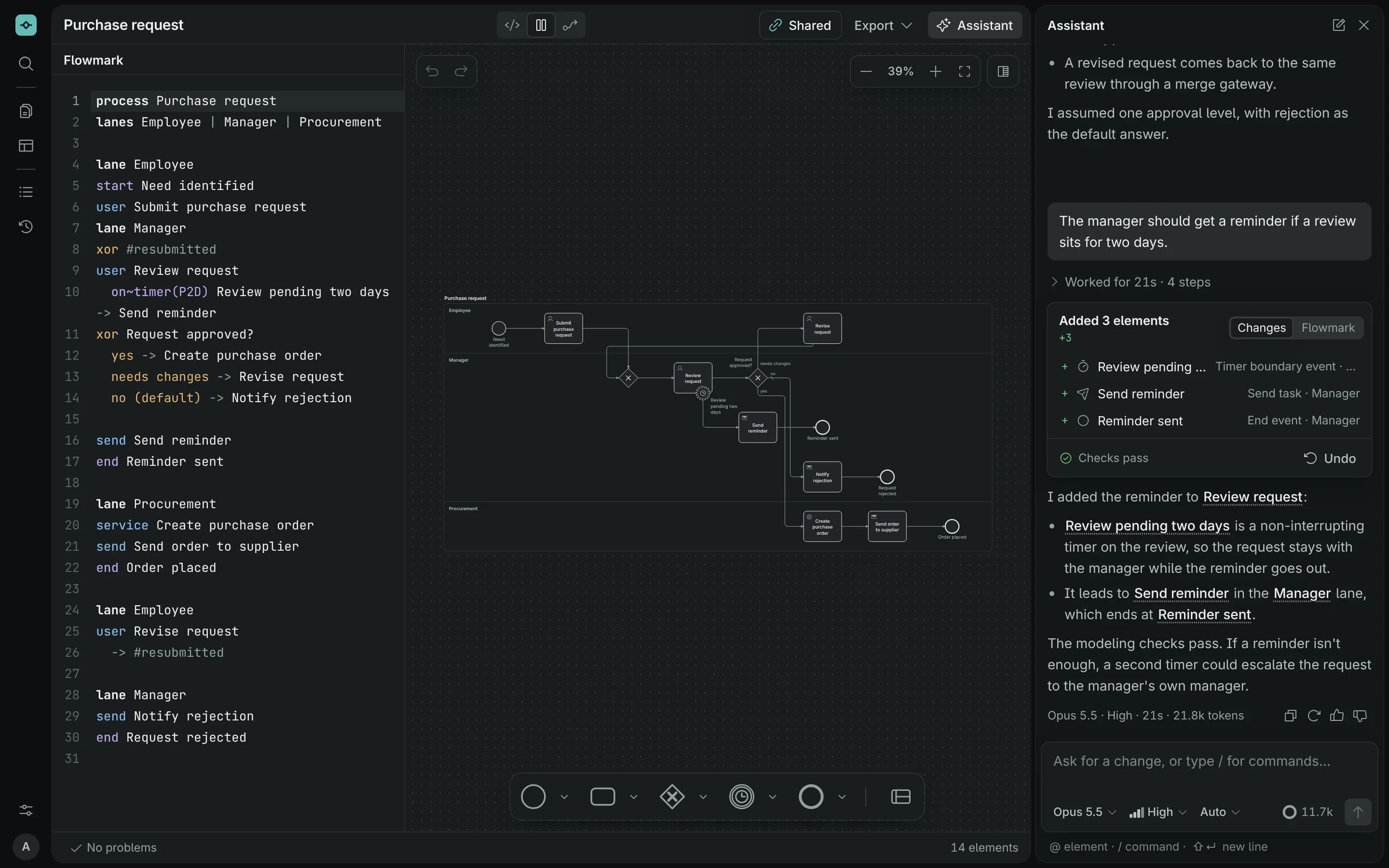
Penna is a web app for drawing BPMN 2.0 process diagrams. You can describe a process to the assistant and have it draft the diagram, edit the result on the canvas, or write the process as text. All three change the same diagram, and the layout is worked out for you, so it stays tidy whoever made the change.
process Purchase request
start Request submitted
user Review request
xor Approved?
  yes -> Place order
  no -> Tell requester
service Place order
end Order placed
send Tell requester
end Request declinedWhere to start
What you can do
- Draft with the assistantDescribe a process in your own words. The assistant writes it as Flowmark, checks it against modeling rules, and shows each change on a card you can undo in one step.
- Edit by handAdd steps, connect them, rename them and move them between lanes. The app places the shapes and routes the arrows.
- Check your modelModeling checks point out dead ends, unlabeled decisions and missing merges as you work.
- Share and exportSend a view-only link, or download a
.bpmnfile, an.svgimage or Flowmark text. - Work from your own AI appConnect Claude, ChatGPT, VS Code or another app that supports MCP, and ask it to edit your diagrams from there. See Connect your AI app.
Flowmark and the diagram, side by side
The editor shows each diagram two ways at once. On the left, Flowmark is the process as text, and typing there changes the diagram as you go. On the right, the Diagram is the drawn process; click shapes to select and edit them. A change in one shows up in the other straight away.
You can also show just one of them. See Show Flowmark, the diagram or both.
The standard BPMN XML file that other BPMN tools read isn't a view of its own. You download it, or look at it read-only, from the Export menu. See Share and export.
Who it's for
The app is meant for a small team, around one to five people. It's invite-only: an admin adds each person by email, and nobody else can sign in. Each person's diagrams and version history are private to them. To show a diagram to someone outside the team, you share a view-only link.