The assistant
Set up the in-app assistant with Claude, ChatGPT or Gemini and use it to draft and change diagrams.
The assistant drafts and edits the diagram you have open. Describe a process and it builds the whole flow; ask for a change and it makes it. It works on the same diagram you see, so you can switch between asking it for changes and editing by hand.
Open the assistant
Press ⌘ I (Ctrl I on Windows and Linux) to open the assistant and put the cursor in its message box. This works from the Flowmark pane too. ⌥ ⌘ B (Alt Ctrl B) shows or hides it, as does Assistant at the right end of the diagram's header. Hide assistant in the panel's header closes it.
In a window 1,440 pixels wide or more, the assistant starts open; in a narrower one, it starts closed. Once you open or close it yourself, the app remembers your choice. When the window is too narrow to fit it beside your work, it opens over the diagram instead.
The assistant isn't available on a phone. See Use the app on a phone.
Set it up
You can use the assistant without a key of your own: it then runs the app's model. To choose the model and effort yourself, add an API key for the provider you want. Open Settings and go to the Assistant section.
- Under Provider, pick Claude, ChatGPT or Gemini.
- Paste your key into the API key field. Get a key takes you to that provider's page for creating one.
- For ChatGPT and Gemini, set the Model id. The field appears once you've added your own key. Type a model name, or use the button next to the field to load the models your key can use and pick from the suggestions.
The line under these settings tells you which key is in use, for example "Using your Anthropic key", or "Using the app's model" and its name when you have no key. You pick the model and the effort level in the assistant itself.
Where your key goes
Your key is saved in this browser only. It's sent with your own requests to the app's server, which passes it on to the provider and doesn't store it. On another browser or device you add it again.
Your admin may have set up shared keys for the team. If so, the key field says it's optional, and the assistant works without a key of your own. A shared key may be limited to certain models. Once you have a key of your own, the model menu's Server key group lists only the models the app's key allows, and turns on the app's key run at High effort. Your own key is used whenever you've set one, so it lifts that limit for its provider.
Choose the model and effort
Under the message box are the controls for your next request: the model, the effort level, how edits land, and how much of the conversation the model can still take in.
Without a key of your own, the message box shows the app's model as plain text, with no model menu and no effort picker, and every turn runs at High effort. Add a key in Settings to choose them.
The model menu groups the models by provider, and says for each provider whether it uses Your key or the Server key, or has No key. Picking a model from a provider with no key takes you to Settings to add one. Manage keys at the bottom of the menu opens Settings too.
| Provider | Models | Effort |
|---|---|---|
| Claude | Opus 5.5 (the default), Sonnet 5.5, Haiku 5.5 | Low, Medium, High, Extra high |
| ChatGPT | The Model id from Settings, gpt-6-luna by default | Low, Medium, High |
| Gemini | The Model id from Settings, gemini-3.5-flash-lite by default | Low, Medium, High |
Effort trades speed for care. High is the default and the recommended setting for drafting; Low is fine for small edits. A new effort level applies from your next message.
The app remembers a model for each provider, so switching providers and back keeps your choice.
Watch the context
The ring next to the send button shows how much of the model's context window the conversation uses, as a percentage. It turns to a warning color at 80%. Select it to see the total in tokens, split into the app's instructions and tools, your business context, the diagram and the conversation, and this conversation's input, output and cached tokens so far. The total comes from the provider; the split is an estimate. When the app doesn't know the model's window size, the ring shows the token count instead of a percentage.
When the conversation gets long, select New conversation there to start fresh. The diagram stays as it is.
Ask for a diagram or a change
Type in the message box and press Enter to send. Shift Enter starts a new line.
While the assistant is working, the send button becomes a stop button, and Esc in the message box stops it too. If you type another message and press Enter while it works, the message waits above the box as Queued and is sent when the current request finishes. If the request stops or fails instead, the message goes back into the box. Remove a queued message with the button next to it.
Before your first request, the assistant offers starting points. For an empty diagram, they're domains to draft from, such as Expense claim, Procure to pay or Order to cash. For a diagram with steps, they're Review this diagram, a fix for the issues the checks found, Explain it, and Split into lanes when the diagram has fewer than two lanes. Each one fills in the message box and waits for you to send it.
For a new process with important details missing, such as who's involved, what starts it or what the outcomes are, the assistant may ask a few short questions first, each with the answer it would assume. If you'd rather it went ahead, tell it to draft the process now; it lists its assumptions afterwards.
Point at steps
To point the assistant at particular steps, select them on the canvas before you send, or type @ and pick them from the list. They appear as chips above your message, and the assistant takes "this" or "these" to mean them. Remove a chip with its own button, or press ⌫ in an empty message box to remove the last one.
Use a command
Type / at the start of the message box to pick a command. Each one fills in a request for you to read over and send.
| Command | What it asks for |
|---|---|
/review | Review against BPMN practice |
/fix | Fix the modeling issues |
/explain | Explain in plain words |
/polish | Polish layout |
/lanes | Assign steps to roles |
/draft | Draft from a domain |
/remember | Save a rule as a learning, without sending anything to the model |
A sequence diagram has its own commands, such as /errors to add failure paths. See The assistant for sequence diagrams.
What it does with your diagram
The assistant doesn't draw. It changes the process structure with a small set of tools, and the app lays out the result the same way it does for your own edits.
- Drafting or restructuring: it writes the whole process as Flowmark and replaces the diagram with it.
- Smaller changes: it applies a batch of small edit operations, such as adding a step or relabeling a flow. If one operation in a batch fails, none of them apply. Elements keep their ids, so the parts you didn't ask about stay as they were.
- Reading first: it reads the current diagram before editing when it might be out of date, so it picks up changes you made by hand.
- Checking its work: after every change it gets the modeling checks back and fixes errors and real problems before it finishes.
- Reading your comments: it can read the open comments on the diagram, with the elements they're on and their replies. It can't change or resolve them; when it has dealt with some, it says which, so you can resolve them.
- Spacing and tidying: ask it to improve the spacing, make the diagram more spacious or more compact, put moved steps back, or polish the layout for reading, and it changes the spacing or tidies up without touching the process. It may also reorder lanes so the work flows down the page. It knows how many steps you moved, but not where.
- Looking things up: it can look up the app's guidance on Flowmark, modeling style, gateways, events and exceptions, and reference processes for common areas such as order to cash, procure to pay, recruitment and incident management.
Follow its work
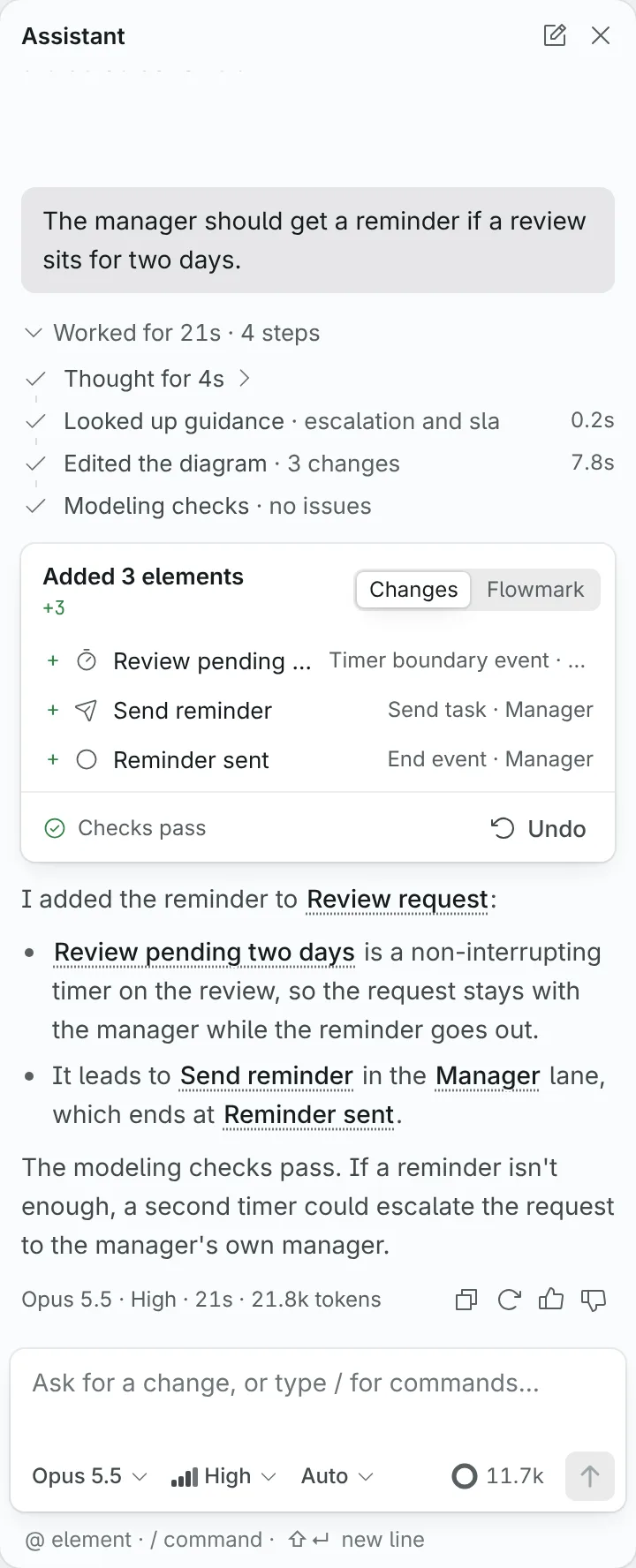
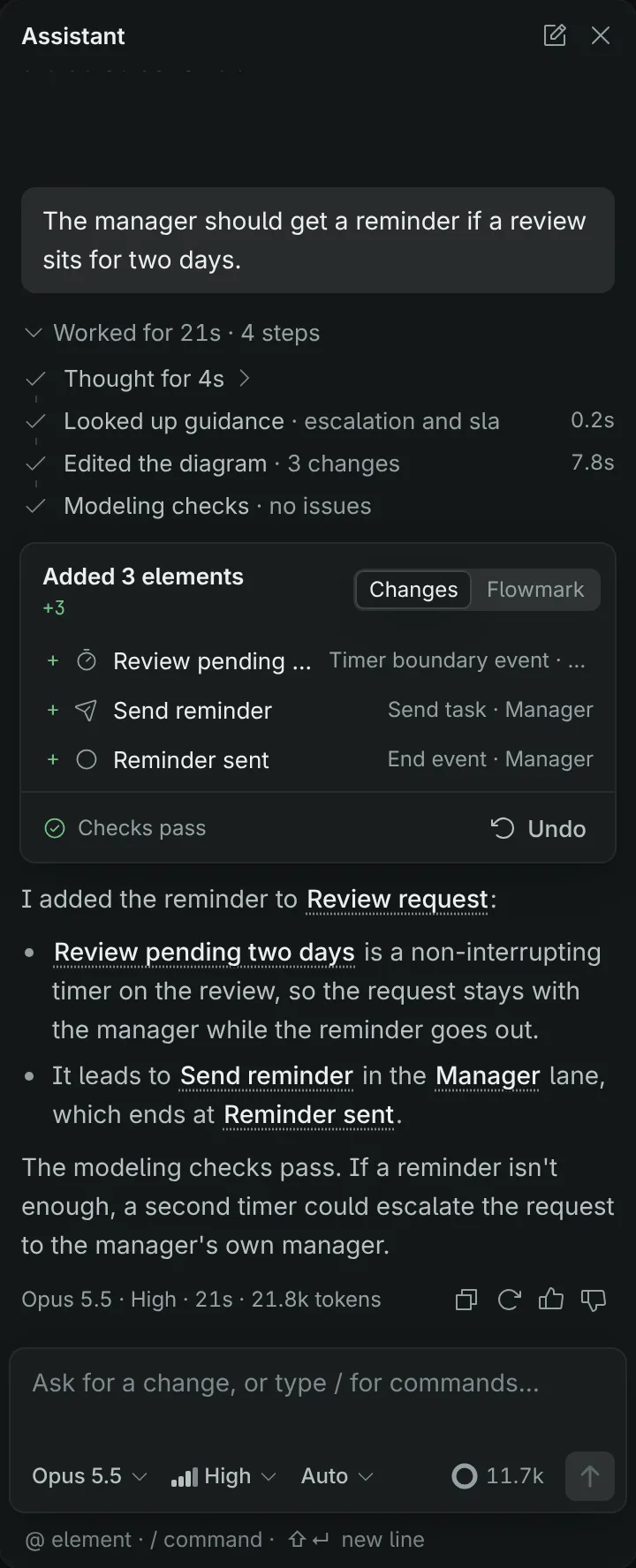
Each request and what came of it is a turn in the panel. Under your request, the assistant lists its steps as it works, such as Read the diagram, Edited the diagram, Looked up guidance and Modeling checks, each with how long it took. When the model shares its reasoning, a Thinking step shows the latest of it; afterwards it reads "Thought for" a number of seconds, and you can expand it. When the turn ends, the steps fold into one line, such as "Worked for 9s · 5 steps", which you can expand again.
The assistant ends with a short answer: what it changed and what it assumed. Names of steps and lanes in the answer are links. Point to one to highlight it on the canvas, and select it to select it there.
Review the change card
When a turn changes the diagram, a change card shows what changed. Its title sums up the change, and the counts show how many elements were added (+), changed (~) and removed (−).
- Changes lists each element with its type and lane. Point to one to highlight it on the canvas, and select it to select it there. Long lists show the first few rows and a button for the rest.
- Flowmark shows the change as a diff of the Flowmark text, with unchanged lines folded away until you open them.
- The card's footer says how the diagram fares in the checks afterwards, such as "Checks pass" or a number to fix.
- Undo takes back everything the turn changed, as one step. It's only available while the diagram is still as the turn left it; if you've changed it since, undo your later changes first. An undone card offers Redo.
Elements the assistant just added or changed are ringed on the canvas for a moment.
Approve changes first
The menu next to the effort level sets how the assistant's edits land:
- Auto, the default: edits land at once. Undo them from the change card.
- Ask first: each edit waits for you.
Replacing a diagram that already has steps always waits for you, whichever you choose.
A change that waits shows on the card as Proposed. The canvas shows the diagram as it would look, with a dashed outline around the elements the change adds or changes. Until you decide, the canvas and Flowmark can't be edited, and undo is off. Then:
- Apply puts the change on the diagram. ⌘ ↵ (Ctrl Enter) does the same from anywhere in the app.
- Discard leaves the diagram as it is. The assistant is told you declined, and doesn't make the same change again unless you ask.
- Typing a message and sending it discards the change too, and gives the assistant your message as the reason.
When the change would replace the whole diagram, the card says so, and the buttons are Replace and Keep current.
If the diagram changes in another tab or from your AI app while a proposal waits, applying it doesn't put it on the diagram, because that would undo the other change. The assistant is told to read the diagram again and make its change afresh.
Copy, retry and rate an answer
Each turn ends with a footer: the model, effort, time taken and tokens used, then Copy answer, Retry, Good answer and Bad answer. The latest turn always shows it; earlier ones show it when you point to them. Point to the token count to see how it splits into input, cached and output tokens.
Retry is on the latest turn only. It takes the turn back, undoing its change if the diagram is still as the turn left it, and sends the same request again.
Good answer and Bad answer save your rating on the app's server, with the request, the answer, the steps the assistant took, the model and the diagram before and after. Bad answer first asks What went wrong?: pick any reasons that fit, such as Wrong process logic, Breaks BPMN rules, Ignored my selection, Changed too much, Messy layout or Too slow, add a note if you like, and select Send feedback. With Add to eval scenarios ticked, as it is at first, the turn is offered to the app's evals, the tests the assistant is checked against. Rating a turn again replaces your earlier rating. Save as learning turns your note into a rule the assistant reads from then on; see Business context.
Teach it your business
Write your team names, rules and systems once in Business context, and the assistant reads them with every request. When you correct it on something that holds beyond this diagram, it offers to remember the rule as a learning: a Remember this? card under its answer, which saves nothing until you select Save.
See your usage and cost
The Usage section in Settings shows this month's estimated cost and number of assistant turns. Open usage (or AI usage in the command menu) opens the full view: the estimated cost, turns, tokens and cache hit rate for the last 7, 30 or 90 days, the cost of each day, and tables by task, by model and of your recent turns. Point to a day's bar, or focus the chart and use the arrow keys, to read that day.
By task sorts turns by what they did: a slash command such as /review or /explain names the task, and otherwise it's Draw a diagram (the assistant wrote a whole diagram), Edit the diagram (it changed some elements) or Answer only (it changed nothing). Open a recent turn to see each of its steps: what the assistant did in it, the tokens, the cost and the time it took.
The admin sees everyone's turns on the app's own keys, with a table by person, and can switch to Mine. Everyone else sees only their own turns, on the app's key and on their own keys.
The app records each model call the assistant makes: who made it, the model, whose key, the slash command if any, the names of the tools it used, the tokens used and how it ended. It doesn't keep your requests, the answers or your diagrams for this. Costs are estimates from each provider's list price, so your provider's bill can differ slightly. Use through your own AI app (below) runs on that app's plan and isn't counted here.
Conversations
Each diagram has its own conversation. Conversations are kept in this browser only: they aren't saved to your account, so you won't see them on another device or in another browser.
New conversation in the assistant's header starts over for the current diagram and keeps the old conversation. Once there is one, Past conversations in the header lists them with their number of requests and when they were last used. Select one to continue it, or delete it; Undo in the message that follows brings it back. The app keeps the 30 most recent conversations for each diagram. While a request runs, you can't switch or delete conversations.
Opening a different diagram, or hiding the assistant, stops a reply that's still running.
Switch providers mid-conversation
You can change the model or provider at any point and carry on the same conversation. The app keeps the conversation in one format that every provider can read.
When something goes wrong
When a request can't finish, a notice in the turn says what happened and offers the next step as a button:
- "Add your … key to use …" above the message box: the selected provider has no key yet. Select Add key, or pick a model from a provider that has one. You can keep writing in the meantime.
- The reply hit its length limit, or Stopped after many steps: select Continue.
- The connection to the assistant dropped, or … is rate limiting this key: select Retry now.
- The model sent a broken tool call twice: select Retry now, or pick another model.
- This conversation is too long: select New conversation. The diagram stays as it is.
- … rejected the API key: select Update key and paste a working one.
- Stopped. Changes so far are kept.: you stopped a turn after it changed the diagram. Undo it takes those changes back.
Editing on the canvas and in Flowmark works without any key.
Sequence diagrams
The assistant drafts and edits sequence diagrams too, in sequence code instead of Flowmark, with its own starting points and commands. See The assistant for sequence diagrams.
Use your own AI app instead
You can also work on your diagrams from Claude, ChatGPT, VS Code or another app that supports MCP. Changes made that way show up in the app as they happen, under Your AI app in the diagram's conversation, one line for each change. See Connect your AI app.