Managing people
Invite people, reset passwords, remove access, and manage your own account and connected apps.
The admin decides who can use the app. Only people the admin has invited can sign in, with a password or with Google. The People section described below appears in Settings for the admin only; everyone else has the sections at the end of this page.
Invite someone
- Open Settings and go to the People section.
- Enter their email address under Invite by email and select Invite.
- Copy the sign-in link that appears and send it to them yourself, by chat, email or however you like.
The app doesn't send any email, so the person won't hear about the invite until you send them the link. The link lets them choose a password, works once, and expires after 7 days.
They have to sign in with the exact address you invited (capital letters don't matter). If your workspace has Google sign-in, they can also use Continue with Google with a Google account on that address, and don't need the link.
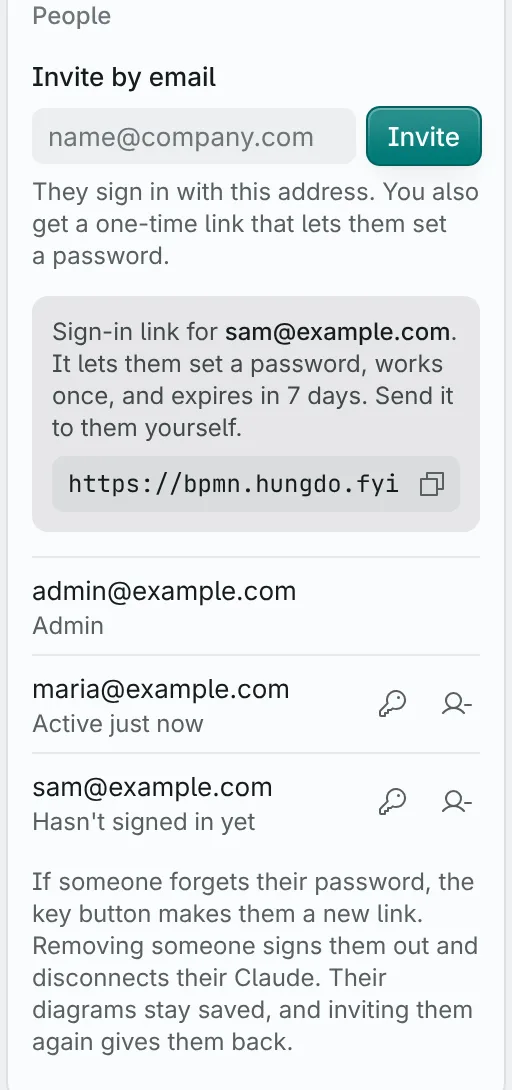
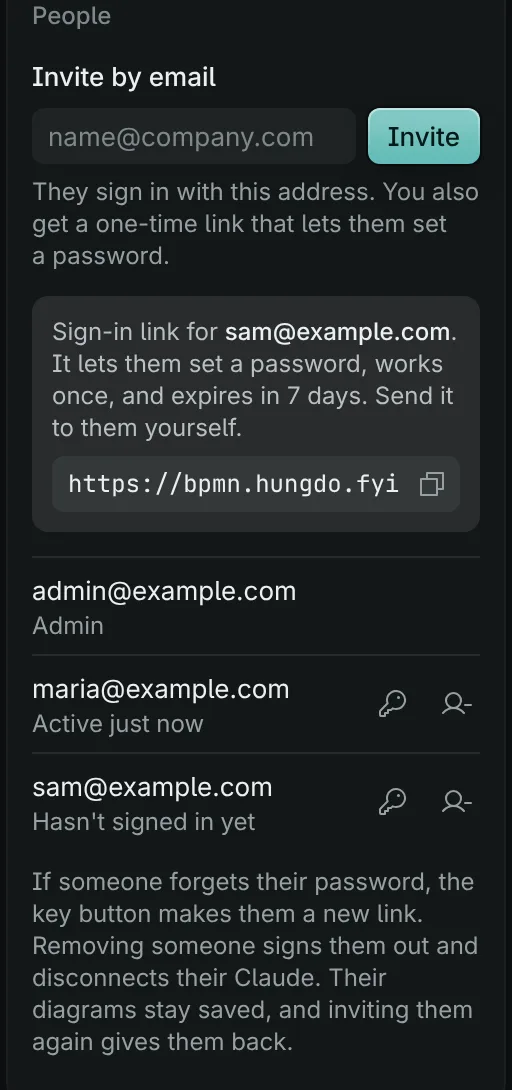
The list under the invite form shows everyone with access. Each person's line says whether they're the admin, when they were last active, or that they haven't signed in yet.
Give someone a new sign-in link
Use this when someone has forgotten their password, or their invite link expired before they used it.
- In Settings > People, find the person.
- Select the key button next to them.
- Copy the new link and send it to them.
The new link replaces any earlier one. It works like an invite link: they choose a new password, their old password stops working, and they're signed out everywhere else.
If someone is locked out
After ten wrong passwords in a row, the account is locked for 15 minutes. The person sees a message saying so. They can wait it out, or you can send them a new sign-in link, which unlocks the account when they set a password with it.
Remove someone
- In Settings > People, select the remove button next to the person.
- Select Remove to confirm.
Removing someone takes effect at once:
- They're signed out everywhere and can't sign in again.
- Any AI app they connected loses access.
- Their view-only links stop working.
Their diagrams aren't deleted. If you invite the same email again later, they get their diagrams back, and their links work again. They'll need the new sign-in link to set a password, because removing someone also clears their old one.
You can't remove yourself.
Change your own password
Anyone can do this.
- Open Settings and select Change password in the Account section.
- Enter your current password, then the new one twice. It needs at least 8 characters.
- Select Change password.
You stay signed in where you are, and you're signed out on your other devices. If you've only ever signed in with Google, there's no current password to enter, and this sets one.
Sign out in the same section signs you out of this browser.
Connected apps
When you connect Claude, ChatGPT, VS Code or another AI app to Penna, you approve it on a page that shows which app is asking and which account it will use. Approved apps then appear under Connected apps in the Use with your AI app section of Settings, with when you connected them.
To take an app's access away, select Disconnect next to it. It can no longer read or change your diagrams. To use it again, connect it again.
For how to connect, see Connect your AI app.